



When we last wrote about Great
Docs,
the project had just reached v0.10.0 and we took the occasion to look
back over ten releases, one feature at a time. Six months have passed
since then. In that time we have shipped seven more releases (v0.11.0
through v0.17.0) and built up a substantial amount of work that will
be available in the next release. Altogether, that’s a little over two
thousand commits from thirteen people. That is a lot of activity, and
much of it went toward making Great Docs more dependable for its users.
This post is a look at where things stand now. We’ll start with the people using Great Docs, since there are quite a few more of them than there used to be (and that’s changed how we think about the work). From there, we’ll survey the new and improved features and spend some time on Termshow, our terminal recording tool, which started as a small addition and has grown into something with its own direction. We’ll finish with two topics that matter more than any single feature: the speed of builds, which is now a central focus, and the refactoring effort that has been quietly rebuilding the tool’s internals.
Who Is Using Great Docs#
There are now well over a hundred public documentation sites built with Great Docs. About ten of them belong to Posit projects such as Great Tables and Pointblank. The rest come from the wider community and cover subjects as far apart as multiple dispatch (multimethod), Bayesian visualization (tidydraws), web templating (fastapi-chameleon), and comparative genomics (OrthoEvolution). The practical consequence of this growth is that any change to Great Docs now reaches a lot of people at once. That’s a responsibility we take seriously, and it’s why a fair share of the recent work has gone into making the tool more predictable as it grows.
Documenting More Than Python APIs#
Great Docs began as a tool for documenting the public API of a Python package, and that remains its center of gravity. But a package’s interface often goes beyond its importable objects. Many packages ship a command-line tool, some expose an MCP server for use by AI agents, and an increasing number publish skill files that describe how an agent should use them. Over the past several releases, Great Docs has learned to document each of these.
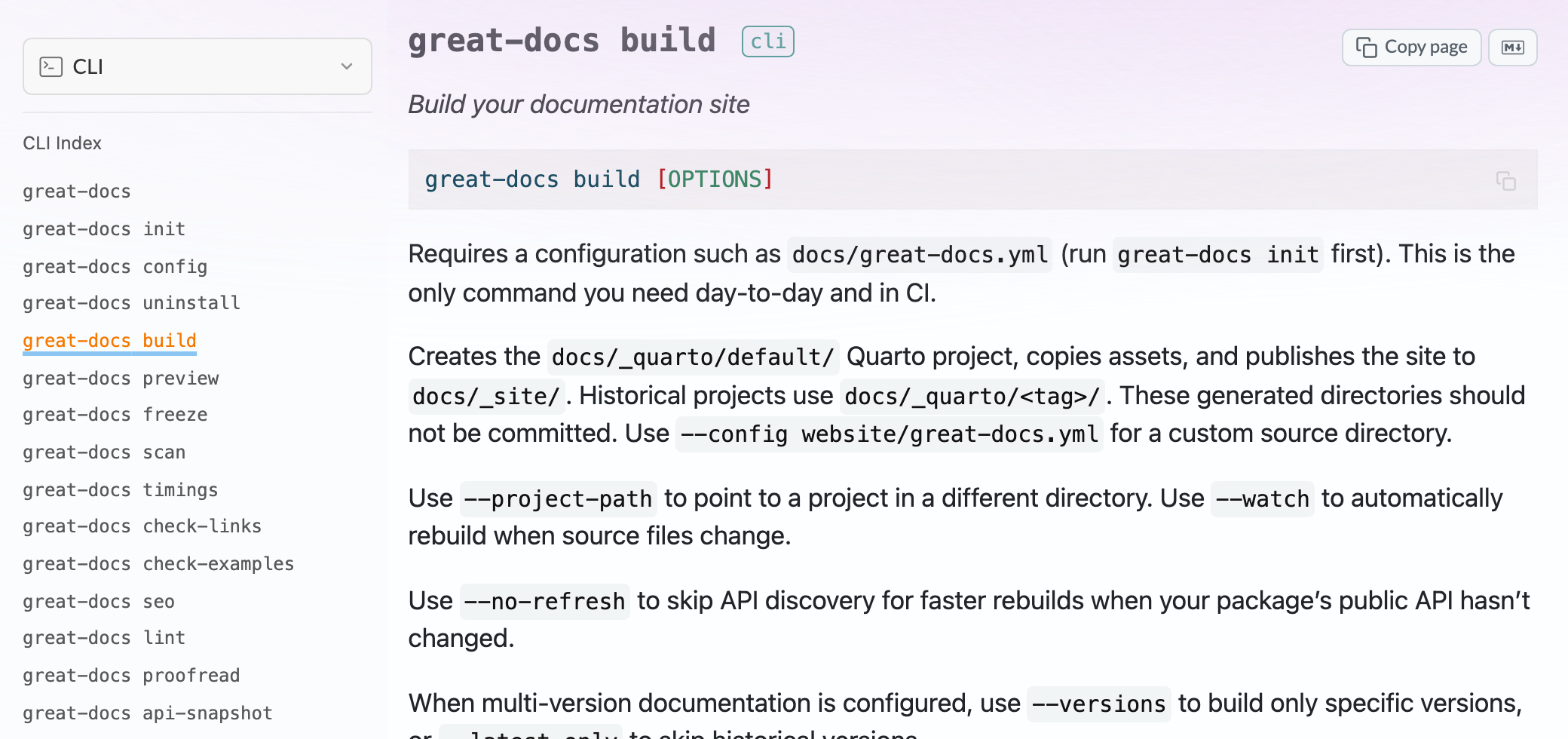
Command-line documentation was the first to arrive. In v0.11.0, Great
Docs gained the ability to find a
Click command group and generate a
reference page for each subcommand, with the usage line, options,
arguments, and an extended description drawn from the docstring. Turning
it on takes a single setting:
cli:
  enabled: true
Since then, the same treatment has been extended to CLIs written in Go
(v0.16.0) and Rust (v0.17.0), and support for
Typer will be available in the next
release. The v0.15.0 release added an index page for the CLI section,
and subcommands can be grouped into titled sections in the same way that
API reference entries can. The Great Docs site documents its own
command-line interface this way, so its reference pages are a fair
demonstration of what the feature produces.
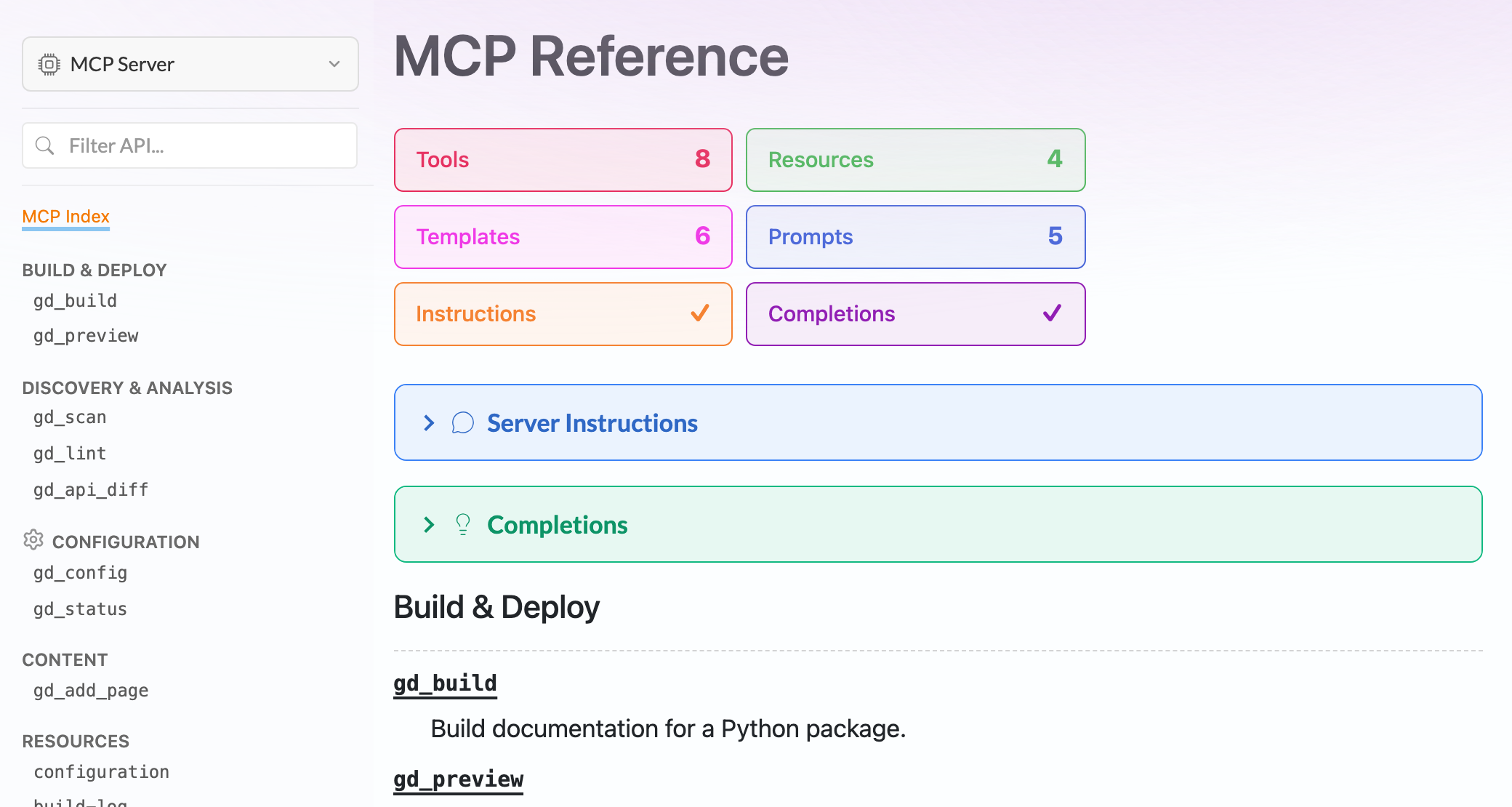
MCP servers came next, in v0.13.0. Great Docs reads the tools,
prompts, and resources a server declares and generates reference pages
for them, along with an index page that summarizes the server at a
glance. It also writes a .well-known/mcp.json manifest so that clients
can discover the server from the documentation site itself. For packages
that expose functionality to agents, this puts that functionality on the
same footing as the Python API. That seems only fair, given how much of
the interaction with some packages now happens through agents.
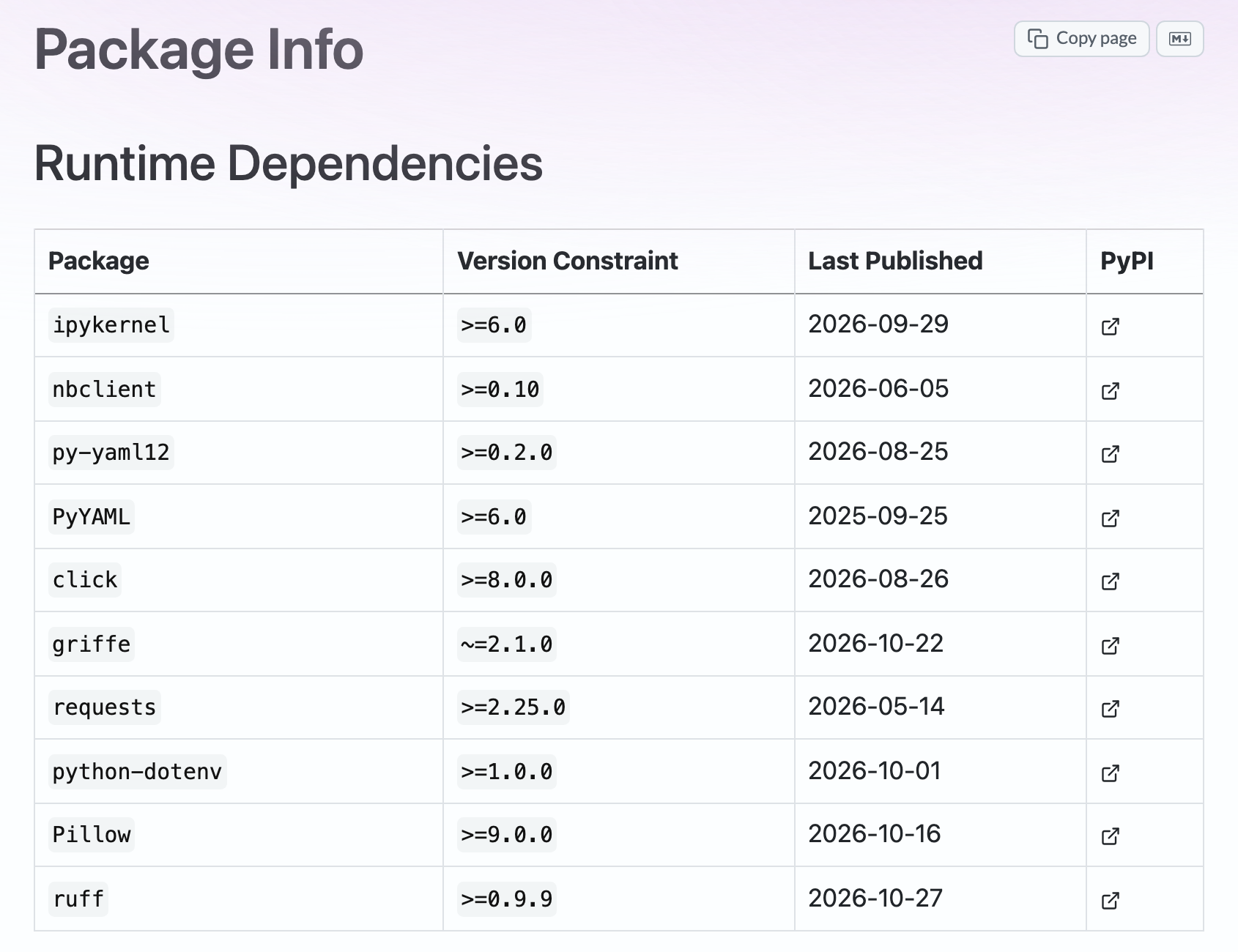
There are more additions in the same spirit. Projects can now publish
multiple agent skills rather than a single one. A Package Info page
(added in v0.15.0) lists a package’s dependencies and metadata, and a
License page (v0.13.1) presents the license with its SPDX identifier.
Type aliases declared with the PEP 695 type statement are documented
properly as of v0.17.0. Together they make a Great Docs site a
complete home for a package, where readers can find nearly everything
they need to know about it in one place.
Richer Pages#
The other broad category of new features concerns what can go on a page.
Documentation is mostly prose and code, but the moments that teach the
most are often the ones where the reader can see or touch something. A
number of features added since v0.10.0 aim at those moments.
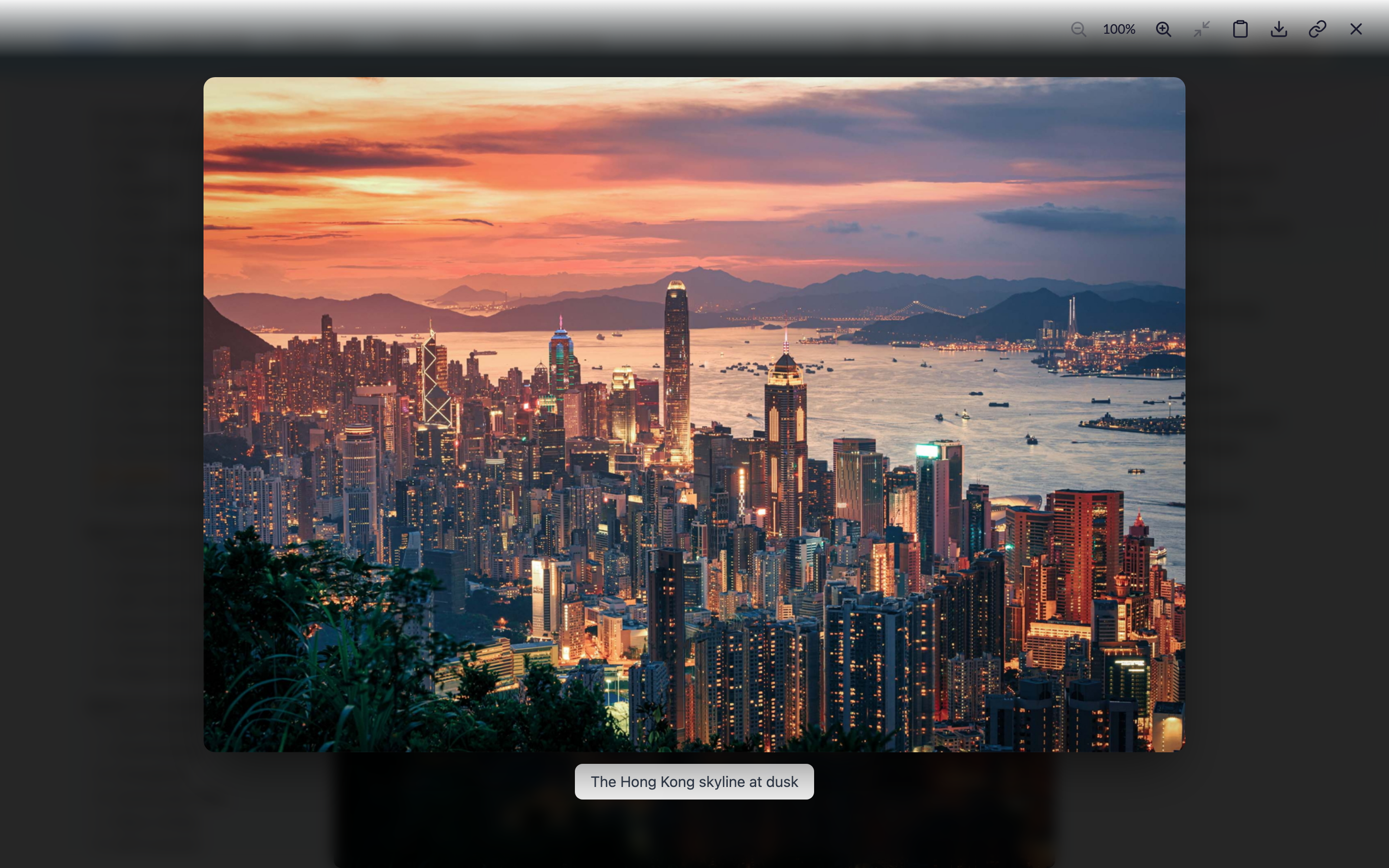
The lightbox, introduced in v0.14.0, lets readers enlarge an image and
inspect it more closely. You can turn it on for a single image with a
.lightbox class or for a whole page with a frontmatter setting. It
supports captions, credits, galleries, zooming and panning, and
alternate images for dark mode:
{.lightbox
caption="The Singapore skyline along Marina Bay"
credit="Photo via Pexels"}The enlarged view includes a small toolbar for zooming, copying,
downloading, and linking directly to the image. The same release added a
{{< compare >}} shortcode that places two images under a draggable
slider. This is useful for showing a before and after state (a chart
under two themes, say, or a table before and after styling).
marimo notebooks arrived in v0.17.0. A marimo
notebook is a plain Python file whose cells re-run reactively when their
inputs change, and Great Docs can embed one directly in a page using a
shortcode. In the default “island” mode, the notebook’s outputs and
widgets appear inline and stay live, so readers can drag a slider and
watch the dependent cells recompute in the browser. An iframe mode goes
further and makes the code itself editable.
{{< marimo file="notebooks/reactive-intro.py" >}}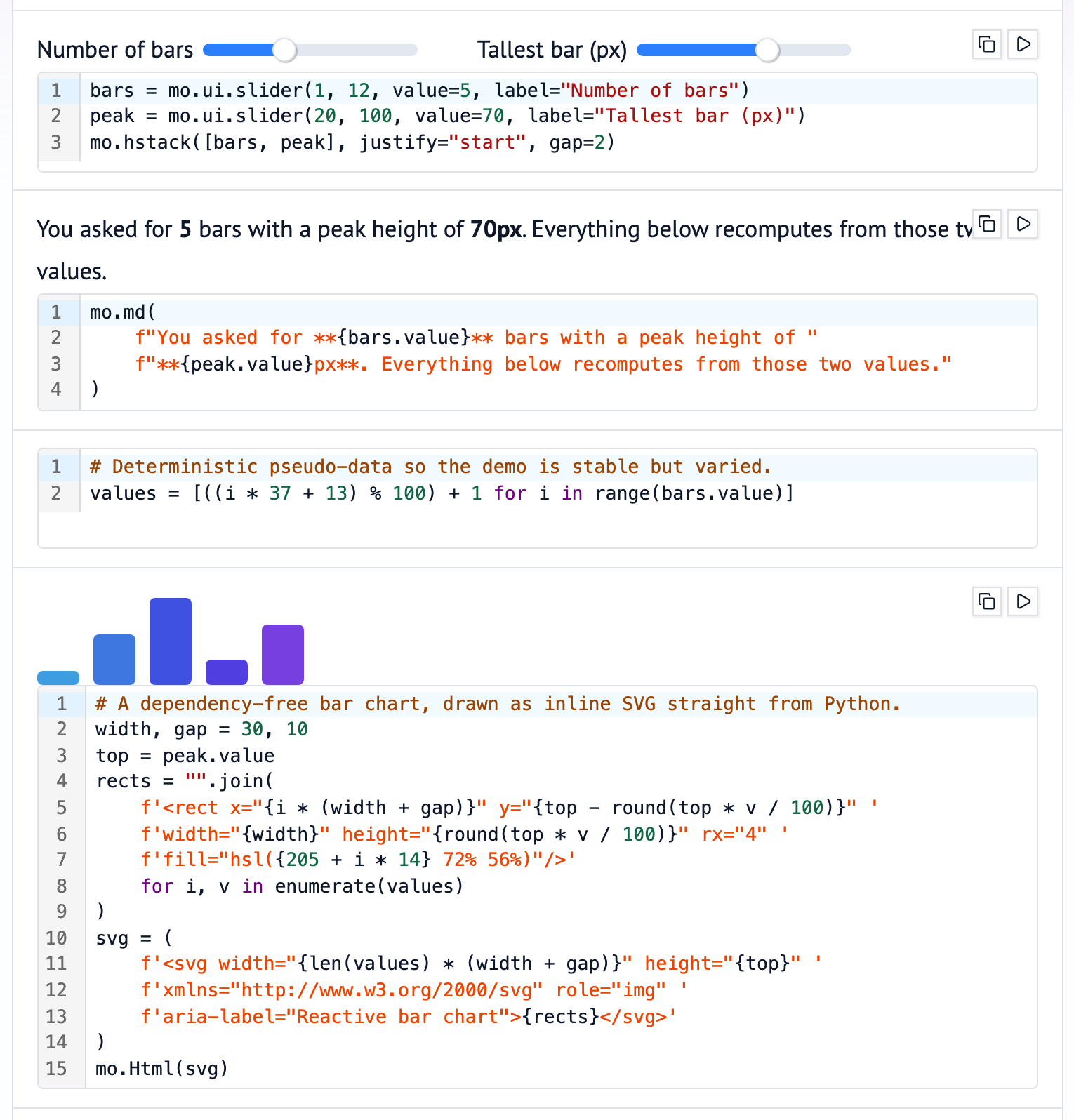
Several more features round out this category. Collapsible details
blocks and mock code cells (which display code as if it had been
executed, without running it) arrived in v0.11.0. Code includes, added
in v0.16.0, let a page pull its examples from real source files so
they can’t quietly drift away from the code. The next release adds
D2 diagrams, pre-rendered to SVG with separate
light and dark versions. It also adds a wide layout toggle that appears
on large screens and lets readers widen the content column (press w,
or configure it with the wide_layout setting). Finally, a new
great-docs check-examples command runs the code cells in your pages
and the examples in your docstrings and reports any that fail. That
addresses a problem every maintainer has met: the documentation example
that stopped working two releases ago without anyone noticing.
Termshow#
Termshow is the part of Great Docs that has changed the most since May,
and it deserves a section of its own. It began in v0.12.0 as a way to
record a terminal session and play it back on a documentation page. Many
packages are best introduced through a terminal (an installation, a
first command, a short interactive session). The usual ways of showing
this are a static code block, which conveys nothing of the experience,
or a video or GIF, which can’t be searched, copied, or edited without
recording it again. A Termshow recording is a text file of timed
terminal output, and the player renders it in the browser, so the text
stays selectable and the file stays small.
The basic workflow is to record a session and then place it on a page with a shortcode. What made Termshow more than a player, even in its first release, was that a recording could be annotated after the fact. You can divide it into chapters, highlight regions of the screen, attach notes that appear at particular moments, and pick out snippets of output that readers can copy. The Great Docs homepage uses a recording of this kind to show the tool being installed and run, with chapter markers along the bottom of the player.
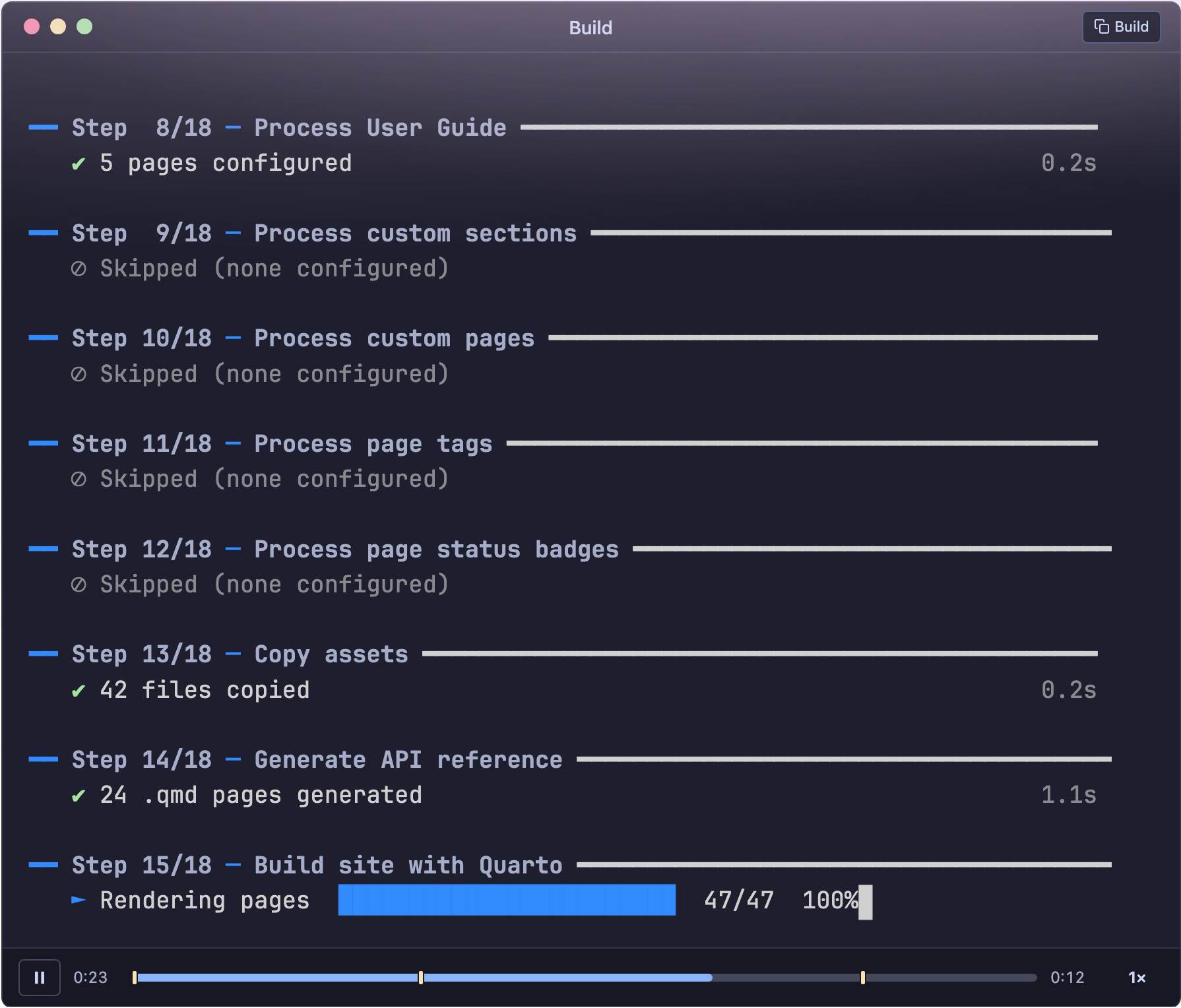
Since August, Termshow has been available as a standalone Quarto
extension, so it can be used in any Quarto project and not only in sites
built with Great Docs. The work since then has gone in a few directions.
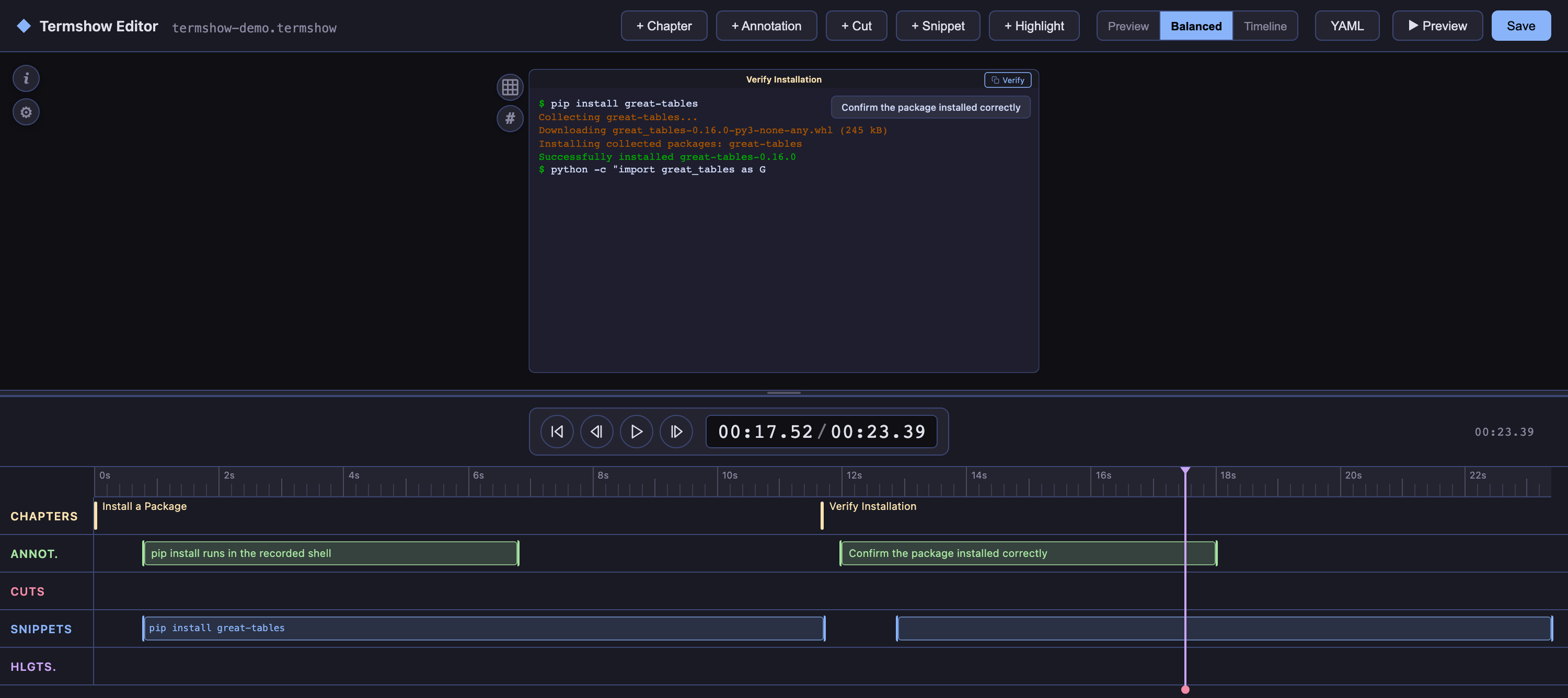
One is authoring. The Termshow Editor, launched with
great-docs termshow edit, is a browser application that lays a
recording out on a timeline. Chapters, annotations, cuts, highlights,
and snippets can then be placed visually rather than by writing
timestamps into a YAML file.
Another direction addresses a weakness that every terminal recording shares: it only shows what a tool printed on the day it was recorded. Termshow now supports scripted recordings, in which a YAML file lists the steps to perform and Termshow types them into a fresh shell:
record:
  shell: bash --norc
  cols: 90
  rows: 20

steps:
  - marker: Install
  - run: pip install mypackage
  - marker: Verify
  - run: python -c "import mypackage; print(mypackage.__version__)"
  - sleep: 2
Because the steps are written down, they can be run again. The
termshow check command reruns them, compares the screen at each marker
with the committed recording, and exits with an error if the output has
changed. Only the text is compared, so a slower machine or a different
color theme doesn’t count as drift. You can also ignore patterns for
text that legitimately changes on every run (version numbers, dates,
temporary paths). Running this in CI turns a demo into something closer
to a test, and once the changes have been reviewed, an --update flag
records the drifted demos again.
great-docs termshow check docs/assets/*.termshow.ymlThe remaining work has been about interoperability. Termshow can import
recordings from asciinema and scripts from
VHS, and it can export to
asciicast, animated SVG, GIF, MP4, and WebM, as well as plain
transcripts and WebVTT captions. A <termshow-player> web component
lets a recording be embedded in any HTML page, and there is now a
written format specification with JSON Schemas. We looked carefully at
the existing tools before choosing this direction. The format used by
asciinema is the established standard, and it made sense to build on it
rather than compete with it. VHS has shown how much people value
recordings that can be scripted and run in CI. What no existing tool
really provides is the layer of editing and presentation that sits on
top of a recording, and that layer is where Termshow aims to be useful.
Termshow is currently installed as part of Great Docs, and making it
just as easy to use on its own is one of the things we’re excited to
work on next.
Speed as a Focus#
If there is one theme that will shape the next several releases, it is
speed. We want builds to feel quick no matter how large a package gets.
Our approach has been to measure first (the great-docs timings command
reports how long each page took) and then make each step of a build
leaner. That has meant doing expensive work once per build and reusing
the results, building sidebars more efficiently, turning on Quarto’s
freeze mechanism by default, and running independent tasks in parallel.
Many of these changes started with reports and contributions from people
documenting large packages. With those steps streamlined, most of a
build’s time is now spent in quarto render, which renders pages one
after another in a single process. The next release tackles this
directly with parallel rendering:
great-docs build --jobs autoWith --jobs, Great Docs divides the pages into groups and renders them
with several Quarto processes at once. With auto, it picks the number
of processes from your CPU count, up to a maximum of eight. Each process
works in its own copy of the build directory and sees the whole project,
so navigation, cross-references, and the search index come out just as
they would in an ordinary build. At the end, the results are merged into
a single site. The groups are balanced using the per-page timings from
the previous build, so they all take about the same time to finish. On a
laptop with six performance cores, a 395-page site rendered in 52
seconds instead of two and a half minutes, and a 1,865-page site in a
little over three minutes instead of nineteen.
The feature is experimental and off by default for now. Small sites, and a few kinds of site that can’t be split safely, still render in one process. If anything unexpected happens during a parallel render, its output is discarded and the site is rendered the ordinary way. Further out, we’re watching Quarto 2 closely. It’s being written with performance as a primary goal, and we intend to adopt it as soon as it’s ready.
Refactoring and a Firmer Foundation#
Everything described so far is visible to anyone who uses Great Docs. Some of the most consequential work of the past few months, though, has happened beneath the surface, in a sustained effort to refactor the tool’s internals. The aim is to give every part of a build a clear place and a clear responsibility. Each page should be produced correctly at the stage where its content is generated, the API reference should be assembled in distinct steps that can each be understood and tested, and the code as a whole should pass strict type-checking. A good deal of that is now in place, and the rest is being approached in the same deliberate, step-by-step way.
The longer-term goal is a project that can grow without losing its footing. To that end, every pull request now runs full builds of forty test packages and compares the results with those from the existing code, so any change in behavior, intended or not, shows up before it reaches a release. That safeguard lets us keep reorganizing the internals with confidence. It should also make the codebase easier for new contributors to approach, since they can see where a change belongs and find out when it has had an effect they didn’t expect. The same groundwork prepares Great Docs for larger shifts ahead, such as the move to Quarto 2. This is the foundation on which the next year of features will be built, and we think it will let them arrive faster and more reliably than before.
Looking Ahead#
Taken together, the work of the past six months points in a consistent direction. The features have widened what Great Docs can document and what can appear on a page. Termshow has grown from a playback widget into a toolkit for terminal demonstrations that stay correct over time. The speed work has made builds noticeably quicker, with more to come, and the refactoring is giving the project a structure that can be tested thoroughly and changed with confidence. With over a hundred projects now depending on Great Docs, that last point may be the most important, because it’s what lets the project keep growing while staying something people can rely on.
Much of what is described here is already released, and the rest (Typer
support, D2 diagrams, the wide layout, check-examples, parallel
rendering, and most of the recent Termshow work) will arrive in the next
release. If you would like to try Great Docs, it is available on
PyPI:
pip install great-docsThe documentation site is built from the latest development version, so it already shows the upcoming features described above. If your builds are slower than you think they should be, we’d like to hear about it. You can open an issue on GitHub for that or for anything else you notice.