



We’re excited to announce shinychat v0.5.0 for R and shinychat v0.7.1 for Python. This release brings the pieces of a complete chat application together around the conversation itself.
shinychat is a toolkit for building complete, conversation-centered chat applications with Shiny. The R package pairs with ellmer, and the Python package pairs with chatlas. Install the latest releases from CRAN or PyPI:
We cover a lot in this post, and there’s even more in the releases. See the R release notes and the Python changelog for the complete list of changes, including a few changes for existing apps if you’re upgrading.
Build a chat application#
A useful chat application needs more than a text box and a streaming response. Your users need a way to return to an earlier conversation, start a new one, correct a question, compare answers, inspect sources, and see what the model is doing when it calls a tool. They may also need to upload a file, open a preview, or move between the chat and the rest of the application.
shinychat gives you sensible starting points for building that experience. Pair it with ellmer in R or chatlas in Python, and you can get a working chat app running with little setup. The chat application model has three layers:
page_chat()gives you a full-window chat app with space for navigation, history, tools, and supporting content.chat_ui()lets you place chat wherever it fits best in your application.chat_server()for R orChat(client=...)for Python connects your app to anellmerorchatlasclient and enables the integrated chat features.
When you want a fully custom experience or need a model client other than ellmer or chatlas, the lower-level pieces are still available for you to assemble yourself.
Start with page_chat()#
When chat is the center of your application, use page_chat().
It gives your users a full-window experience with a chat home, navigation pages, sidebars, toolbars, conversation history, and an artifact drawer.
Users can move to a settings or sources page while their conversation keeps working and streaming.
The Get started guide for R and the Page chat guide for Python walk through the full layout.
Create a chat app#
Build a shinychat application starts similarly in both languages:
library(shiny)
library(shinychat)

ui <- page_chat(title = "Assistant", id = "chat")

server <- function(input, output, session) {
  client <- ellmer::chat_openai(
    system_prompt = "You are a helpful assistant."
  )

  chat_server("chat", client)
}

shinyApp(ui, server)
from chatlas import ChatAnthropic
from shinychat.express import Chat, page_chat
client = ChatAnthropic(system_prompt="You are a helpful assistant.")
chat = Chat(id="chat", client=client)
page_chat(title="Assistant", id="chat")With just a few lines of code, you’ll have a working chat app backed by a live LLM.
Passing a client to chat_server() in R, or to Chat() in Python, does all the hard work for you, fulling connecting your app to the model client and giving you a complete multi-user chat application1.
For a personal chat UI you can use while you develop locally, pass an ellmer client to chat_app() in R, or a chatlas client to Chat(client=...), and then call .app() in Python.
Welcome users#
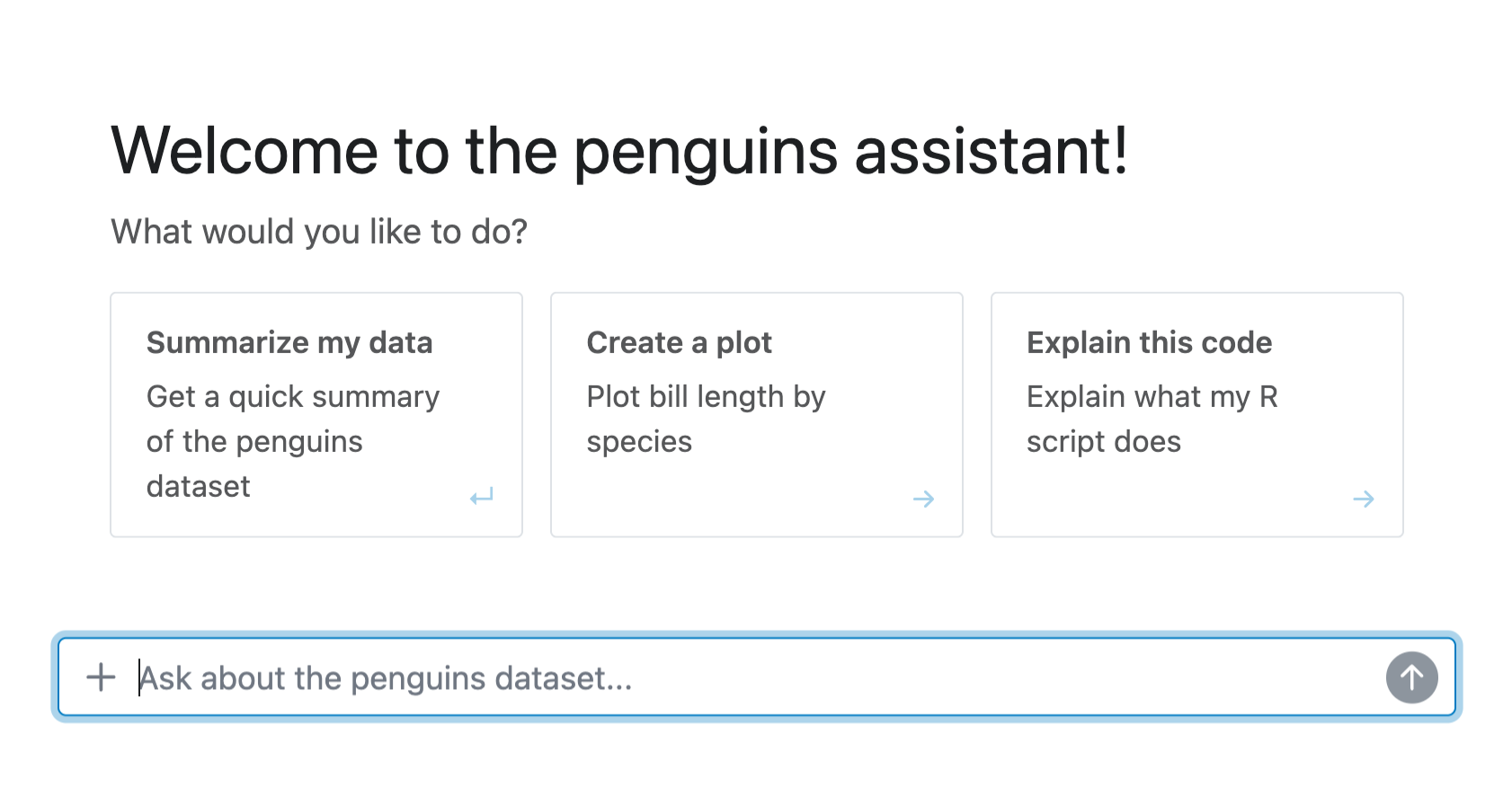
When you’re app opens, don’t leave your users hanging with an empty chat canvas, gree them with chat_greeting() (R, Python)!
Greetings can be used to explain the application, set expectations, and give users a useful first step before they write their first message.
By default, they disappear when the user starts chatting, but you can set persistent = TRUE in R or persistent=True in Python to keep one at the top of the conversation history.
Greetings are written in markdown and can even provide actionable suggestions. Users can click a suggestion to fill the input, ready to edit before sending, or send it immediately.
## Welcome!

What would you like to do?

* <span class="suggestion submit">Summarize my data</span>
* <span class="suggestion">Create a plot</span>
* <span class="suggestion">Explain this code</span>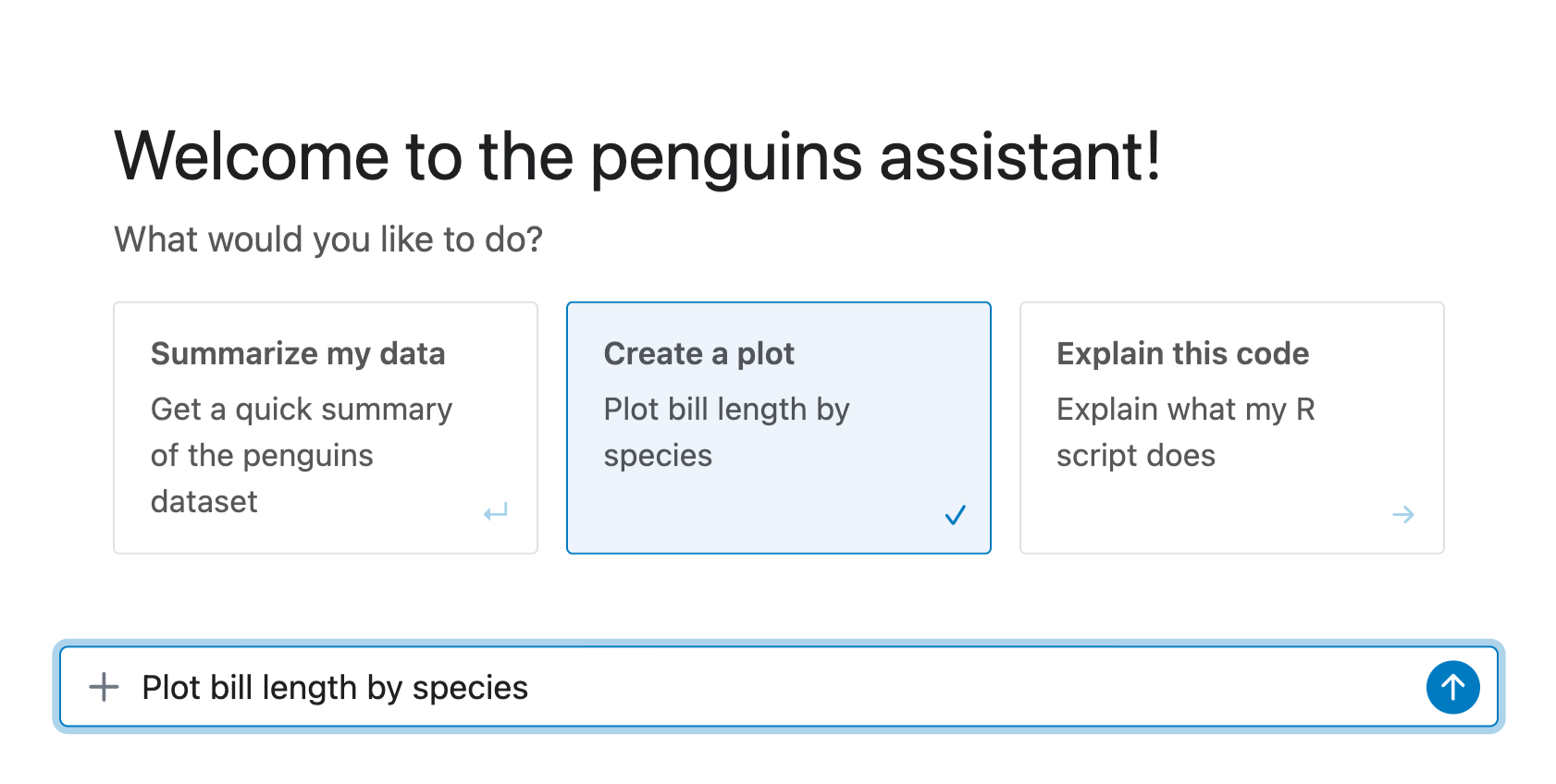
You don’t have to greet your users with the same message every time, you can use LLMs to generate fresh custom greetings.
To learn more, we’ll point you to the chat_greeting() documentation pages (R, Python), but it’s worth noting that dynamic greetings can stream into the chat like any other response.
Return to earlier conversations#
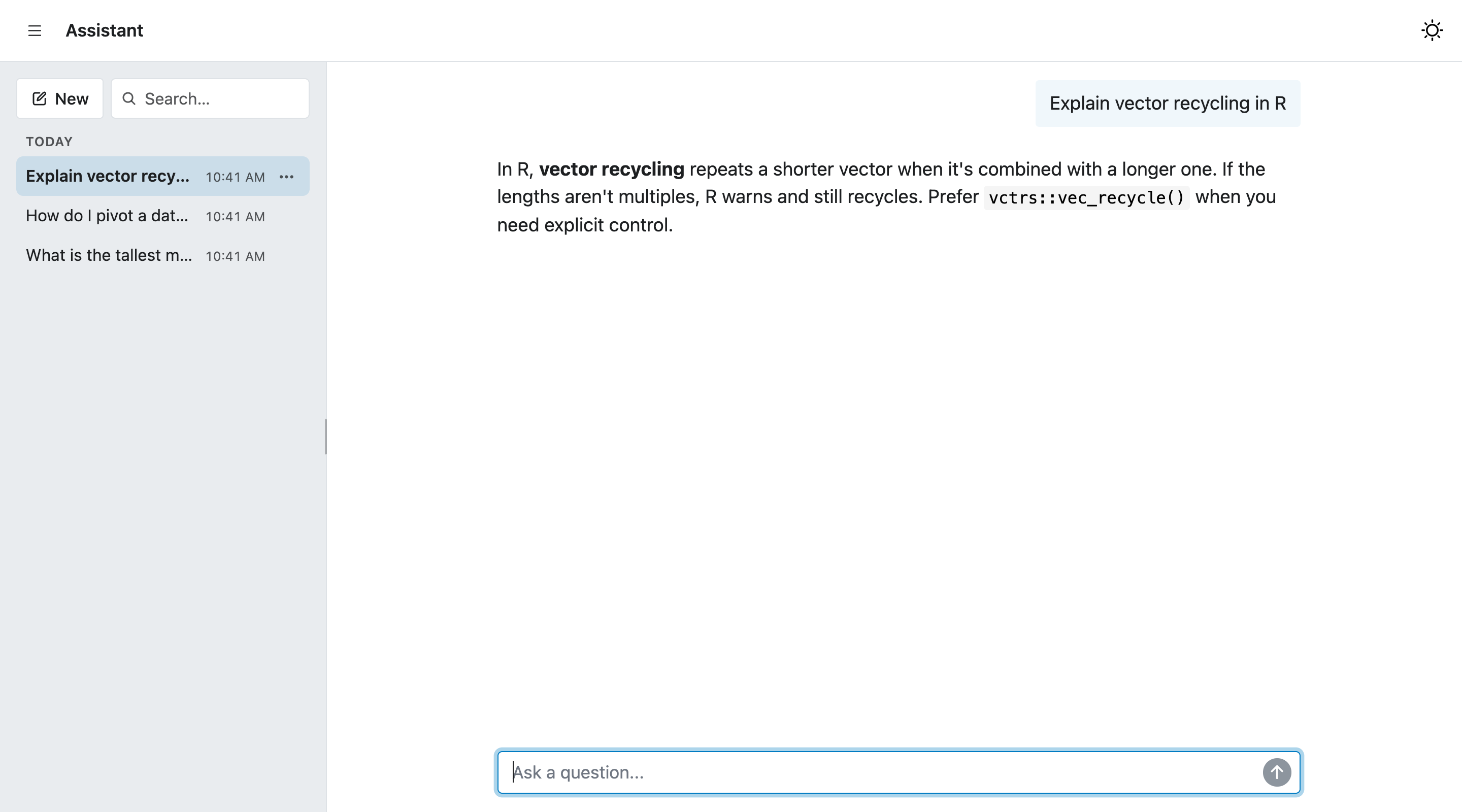
One of the biggest features to arrive in this release is conversation history, giving your chat app the ability to save and return to previous conversations. It will also persist the current conversation across page reloads and other disconnects, virtually eliminating the possibility of losing your progress. As usual, when you connect shinychat with an ellmer or chatlas client, conversation history is wired up and enabled for you!
Save conversations#
The history drawer lets users:
- Start a new conversation.
- Switch between saved conversations.
- Search conversations.
- Rename a conversation.
- Delete a conversation.
- Return to the conversation that was active when they last opened the app.
shinychat generates a short title once the conversation has enough content. Users can replace that title, and title generation never overwrites a manual rename.
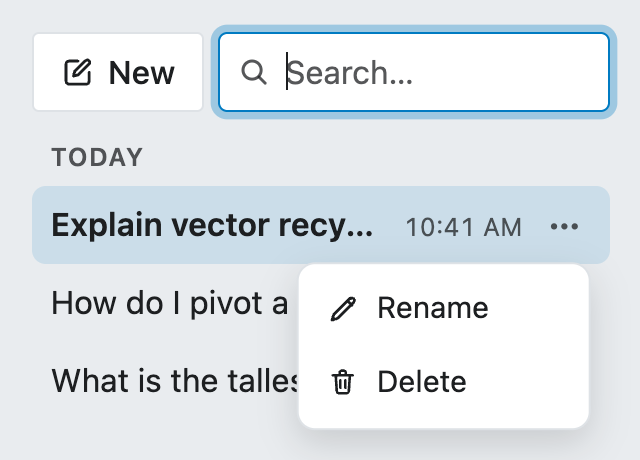
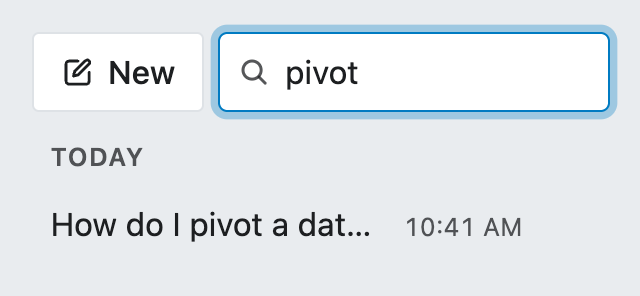
You can history_options() in R or HistoryOptions in Python to configure the conversations that shinychat saves.
The main options are:
restore_mode, which controls which conversation opens when a user returns to the app:"browser"is the default. It returns that browser to its most recent conversation without changing the URL."url"puts the active conversation ID in the address bar, so users can bookmark or share a specific conversation."bookmark"restores the conversation with the rest of the app state when your app uses Shiny server bookmarking.
storecontrols where shinychat saves conversations. Use"memory"for local development or tests, or"file"to save them on disk.titlecontrols how the automated conversation titles are generated.
For example, this configuration stores conversations on disk and puts the active conversation ID in the URL:
history <- history_options(
  restore_mode = "url",
  store = "file"
)

chat_server("chat", client, history = history)
from shinychat import Chat
from shinychat.types import HistoryOptions
history = HistoryOptions(
restore_mode="url",
store="file",
)
chat = Chat("chat", client=client, history=history)On Posit Connect, conversation history is included with the platform and is enabled automatically when you provide a model client. The default configuration uses Connect’s persistent storage and scopes conversations to the authenticated user. That gives every user a private conversation history without an additional history service or per-user setup.
In every restore mode, shinychat keeps the transcript in its configured store instead of putting the full conversation in the URL.
Edit a message and compare answers#
Editing a message now creates a new conversation branch. When a user edits and resends an earlier message, shinychat forks the conversation at that point: the original question and its later messages remain on one branch, while the edited question begins another. Users can move between the answers with the branch controls in the message.
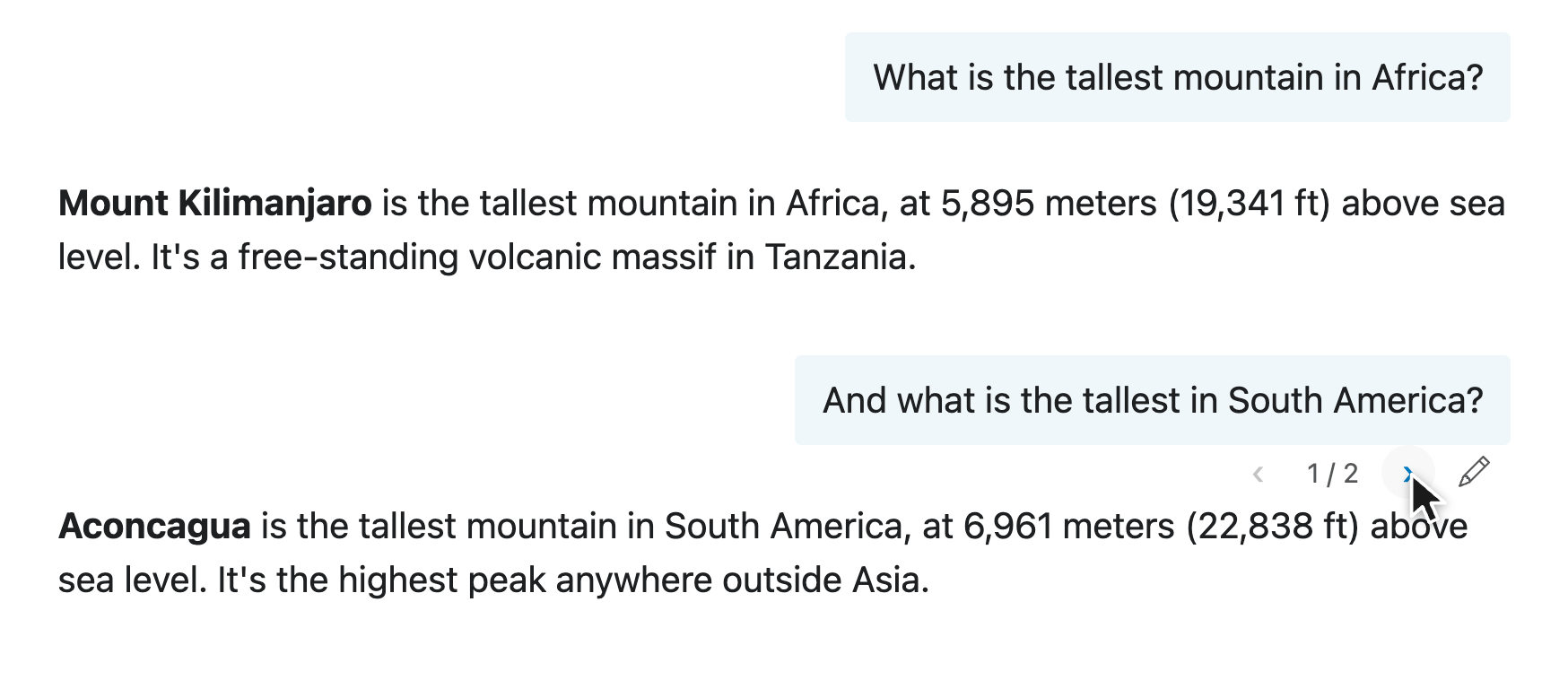

Branches help when a prompt is almost right or when a model takes an unhelpful direction, and they make comparing answers easy without starting over. And they are part of the saved conversation, so users return to their place in the conversation after a reload.
Add content and controls#
When chat is part of a larger application, your users still need access to filters, settings, sources, and results.
page_chat() gives you a place to put those alongside the conversation: a drawer for results, toolbars for controls, and offcanvas panels for settings you would rather keep off screen.
Artifact drawer#
chat_drawer() gives you a place to show previews, rendered reports, tables, plots, or other bits of Shiny UI next to your chat.
Your users can keep the conversation visible while they inspect a result.
See the drawer documentation for R or Python for the full API. The complete application example combines a drawer with the rest of the application layout.
Toolbars#
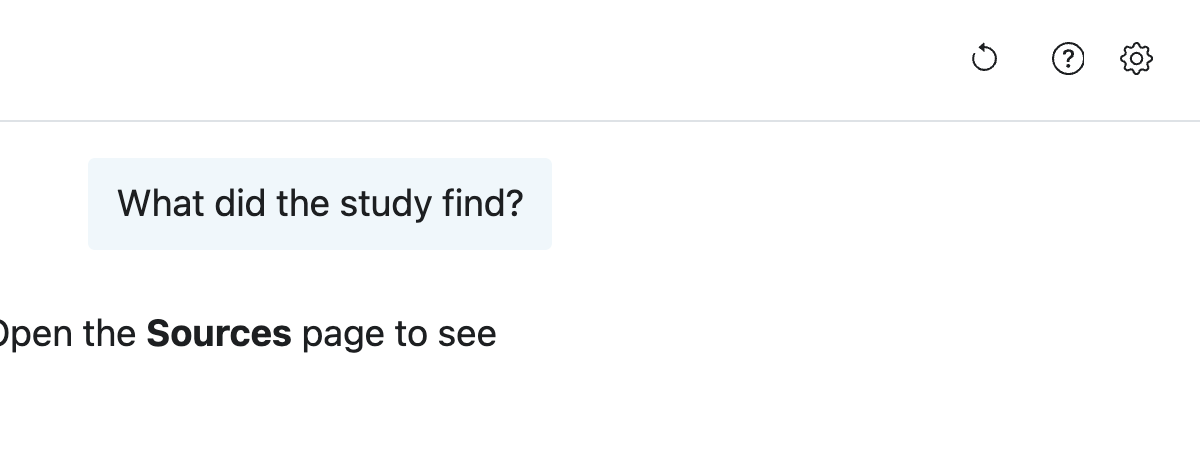
Your app may need a Help button that works on every page, while the chat home needs an action that’s only relevant when you’re looking at the conversation. page_chat() gives each action a home through scoped toolbars, built on the toolbar components that bslib and Shiny shipped earlier this year.
If you want an action to follow users through the whole app — pass it to toolbar_global. Put chat-home actions in toolbar in page_chat(), and give a secondary page its own toolbar through chat_nav_panel(). toolbar_input puts related actions below the message box.
See the R get started guide or the Python Page chat guide for the full toolbar API.
Offcanvas panels#
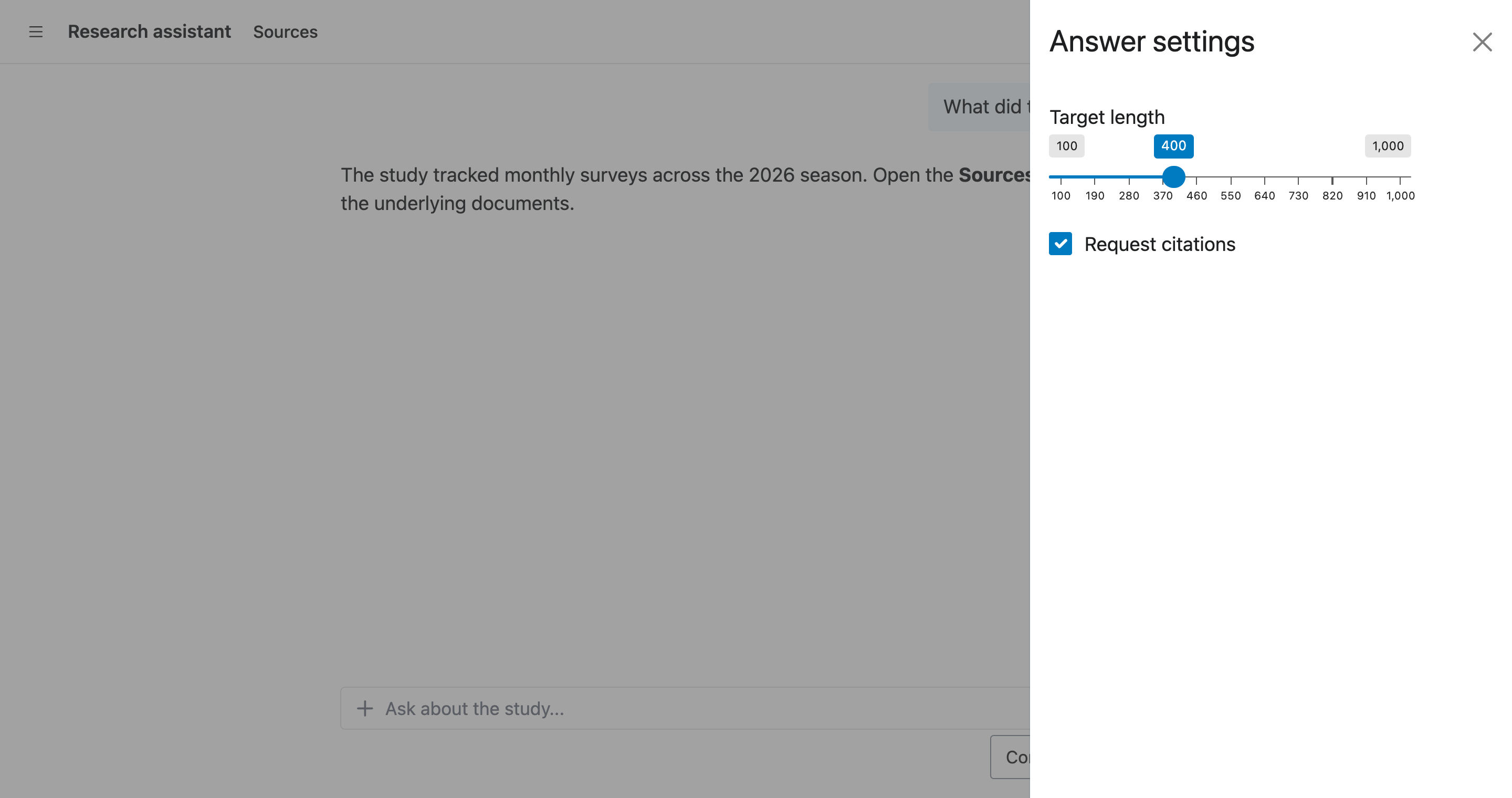
page_chat() pairs offcanvas panels with secondary content, such as an answer-length slider or citation setting, and a toolbar button can open an Answer settings panel from any page:
Complete application#
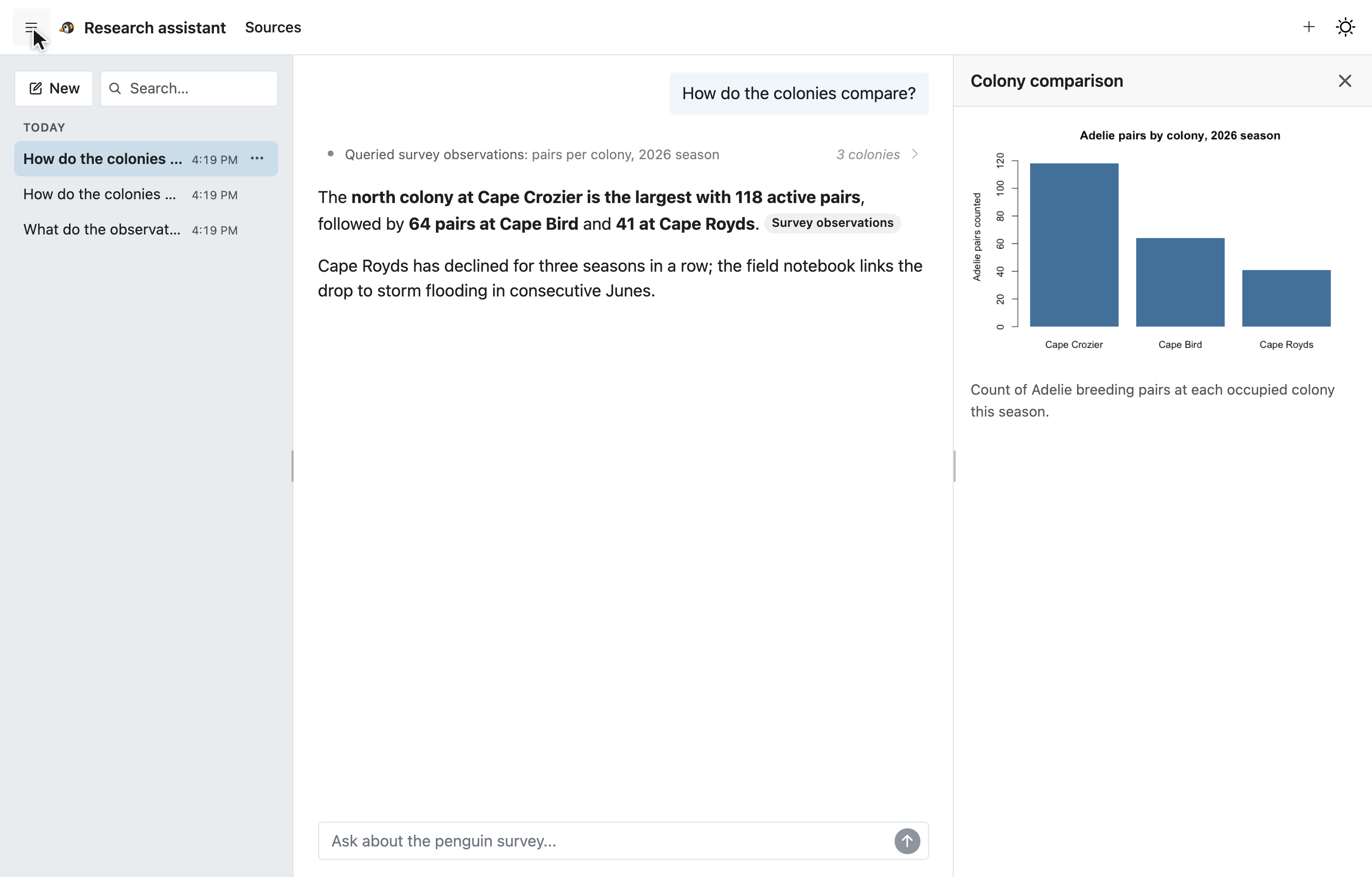
As your app grows, page_chat() can grow around the conversation. You can add secondary pages and a sidebar for filters or other app UI and the application menu keeps those options available on narrow screens.
The following example brings the toolbars, sidebar, navigation, and drawer together.
A complete page_chat() example
ui <- page_chat(
  "Research assistant",
  id = "chat",
  toolbar = bslib::toolbar(
    bslib::toolbar_input_button(
      "clear_chat",
      "Clear conversation",
      icon = bsicons::bs_icon("arrow-counterclockwise")
    )
  ),
  toolbar_global = bslib::toolbar(
    bslib::toolbar_input_button(
      "help",
      "Help",
      icon = bsicons::bs_icon("question-circle")
    )
  ),
  sidebar = chat_sidebar(
    tags$p("Use filters to focus the results."),
    history = FALSE
  ),
  pages_navbar = list(
    chat_nav_panel(
      "Sources",
      tags$p("Sources selected during this session appear here."),
      toolbar = bslib::toolbar(
        bslib::toolbar_input_button(
          "refresh_sources",
          "Refresh",
          icon = bsicons::bs_icon("arrow-repeat")
        )
      )
    )
  ),
  drawer = chat_drawer(
    tags$p("Select a result to inspect it here."),
    title = "Latest result",
    open = FALSE
  )
)
from faicons import icon_svg
from shiny import ui
from shinychat import chat_drawer, chat_nav_panel, chat_sidebar
from shinychat.express import page_chat
page_chat(
"Research assistant",
id="chat",
toolbar=ui.toolbar(
ui.toolbar_input_button(
id="clear_chat",
label="Clear conversation",
icon=icon_svg("arrow-counterclockwise"),
)
),
toolbar_global=ui.toolbar(
ui.toolbar_input_button(
id="help",
label="Help",
icon=icon_svg("question-circle"),
)
),
sidebar=chat_sidebar(
ui.p("Use filters to focus the results."),
history=False,
),
pages_navbar=[
chat_nav_panel(
"Sources",
ui.p("Sources selected during this session appear here."),
toolbar=ui.toolbar(
ui.toolbar_input_button(
id="refresh_sources",
label="Refresh",
icon=icon_svg("arrow-repeat"),
)
),
)
],
drawer=chat_drawer(
ui.p("Select a result to inspect it here."),
title="Latest result",
open=False,
),
)Users see the Clear conversation button while they chat, the Help button on every page, a Sources page with its own Refresh toolbar, and a Latest result drawer beside the conversation.
Show how the model reached an answer#
Understanding how an LLM arrived at an answer is just as — if not more — important than getting the answer from the model. A response can include ordinary text, thinking content, web activity, citations, tool calls, tool results, and custom UI. shinychat works hard to make the model’s work visible and presents each part in a way that helps users understand the answer and what produced it.
Keep tool calls readable#
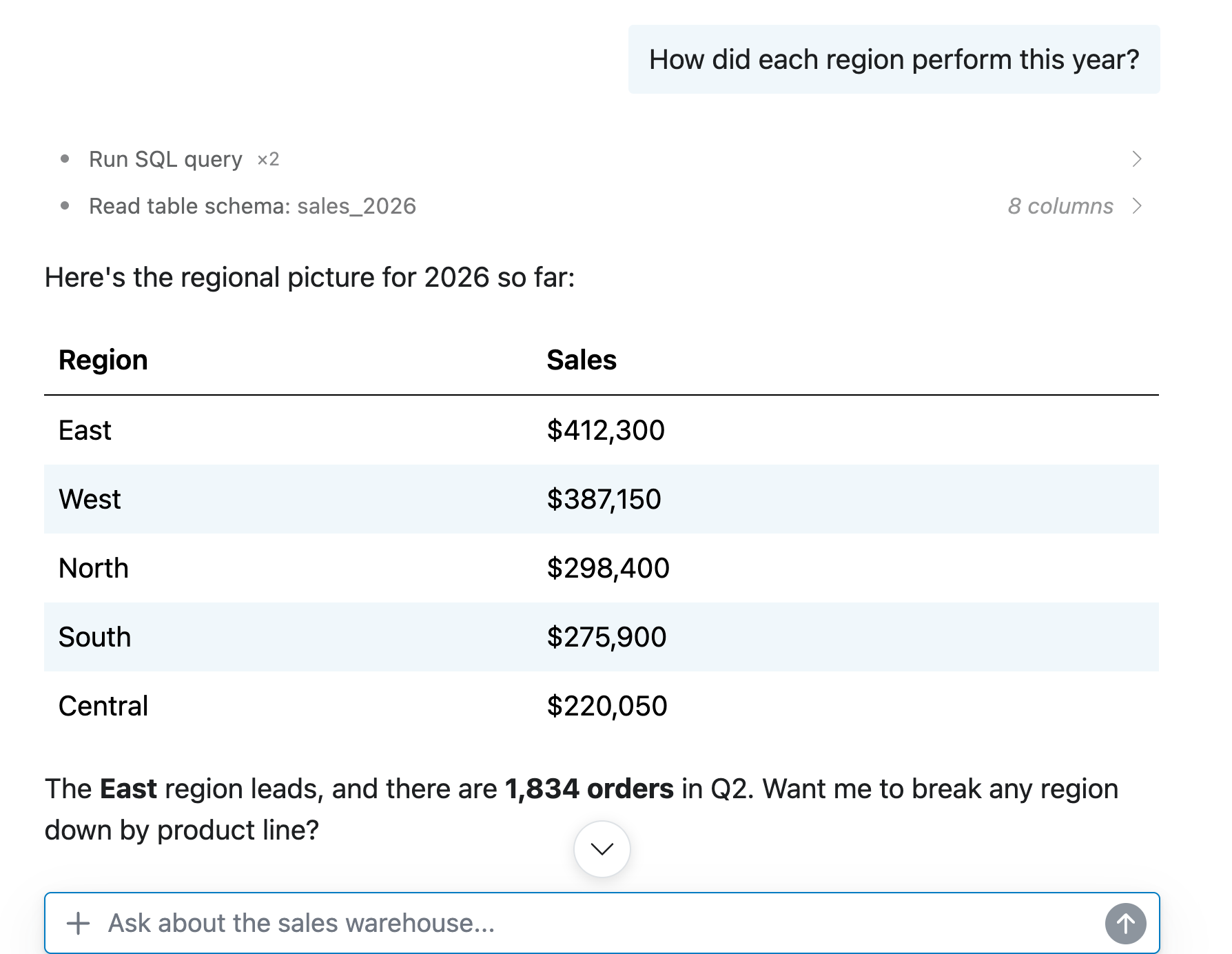
Tool calls are now shown as compact activity rows instead of letting them take over the conversation, refining the tool-call cards shinychat introduced last year. By default, related calls are grouped together into a single row, and users can still expand a group, open an individual call, and inspect the request and result when they need more detail.
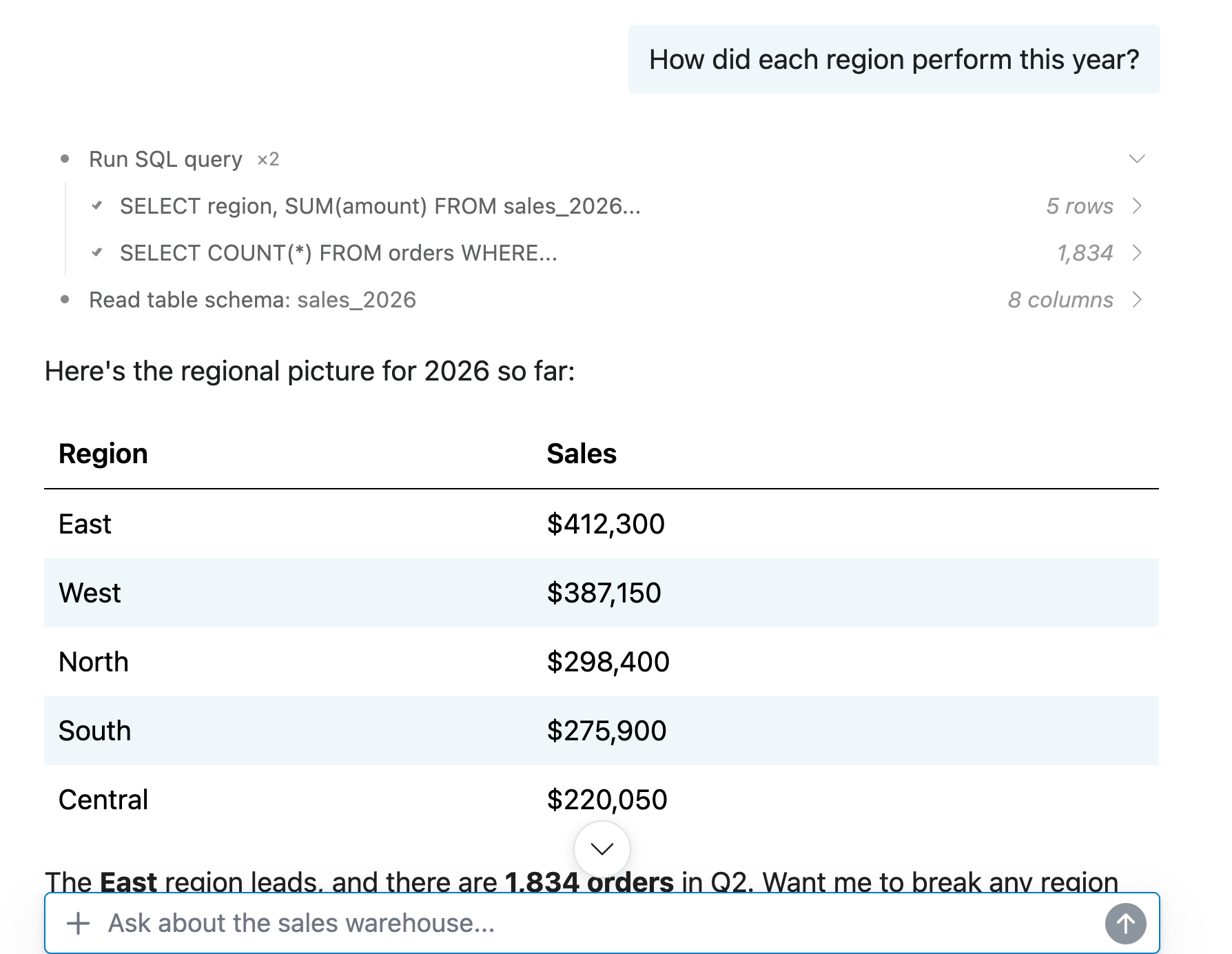
Opening an individual call shows the request and the result in a card:
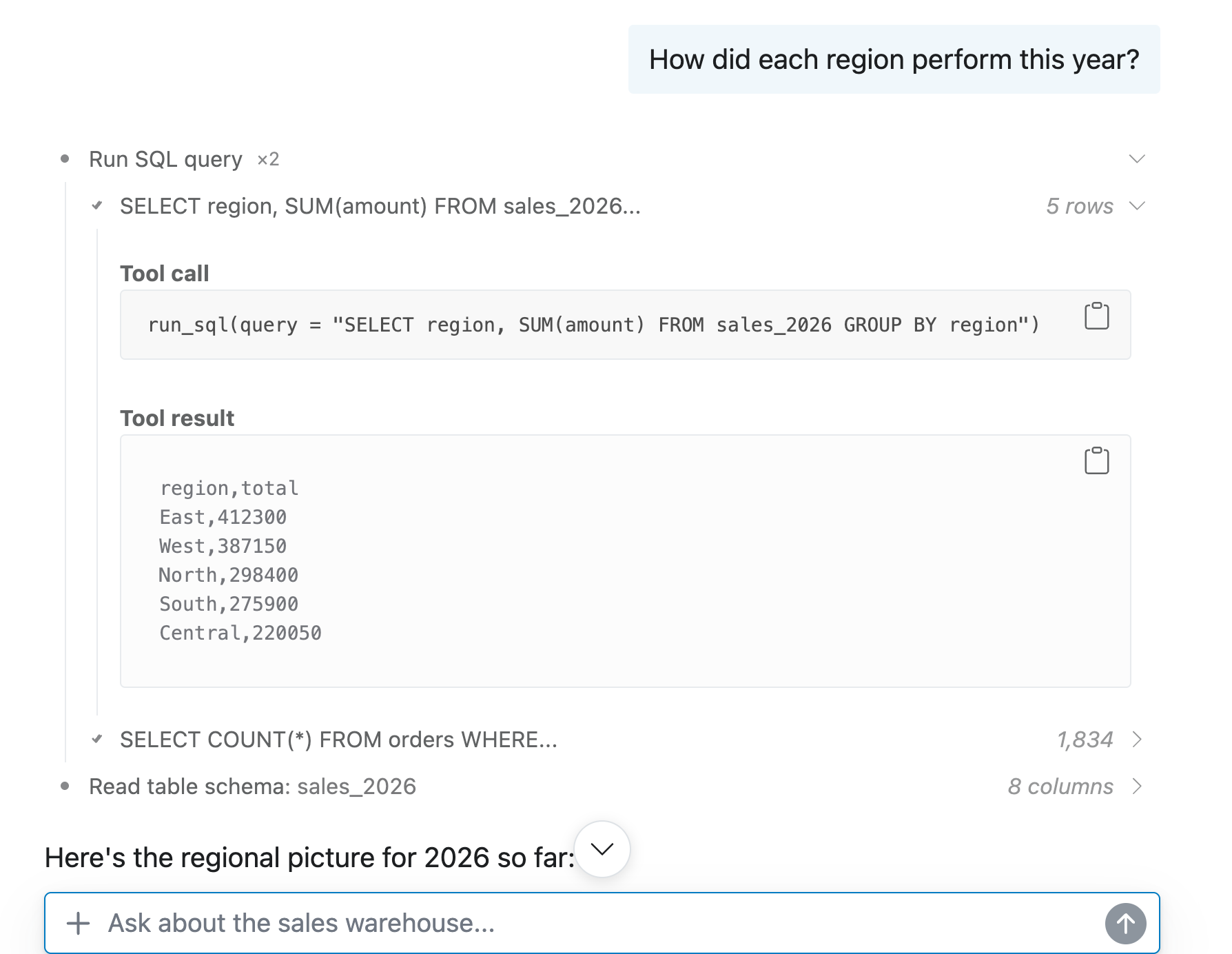
Grouping keeps the answer readable, and the request and result stay one click away. To customize grouping or register tools, see Tool UI in shinychat for R, Tools in Shiny for Python, tool/function calling in ellmer, or tool calling in chatlas.
Show citations for web search and fetch#
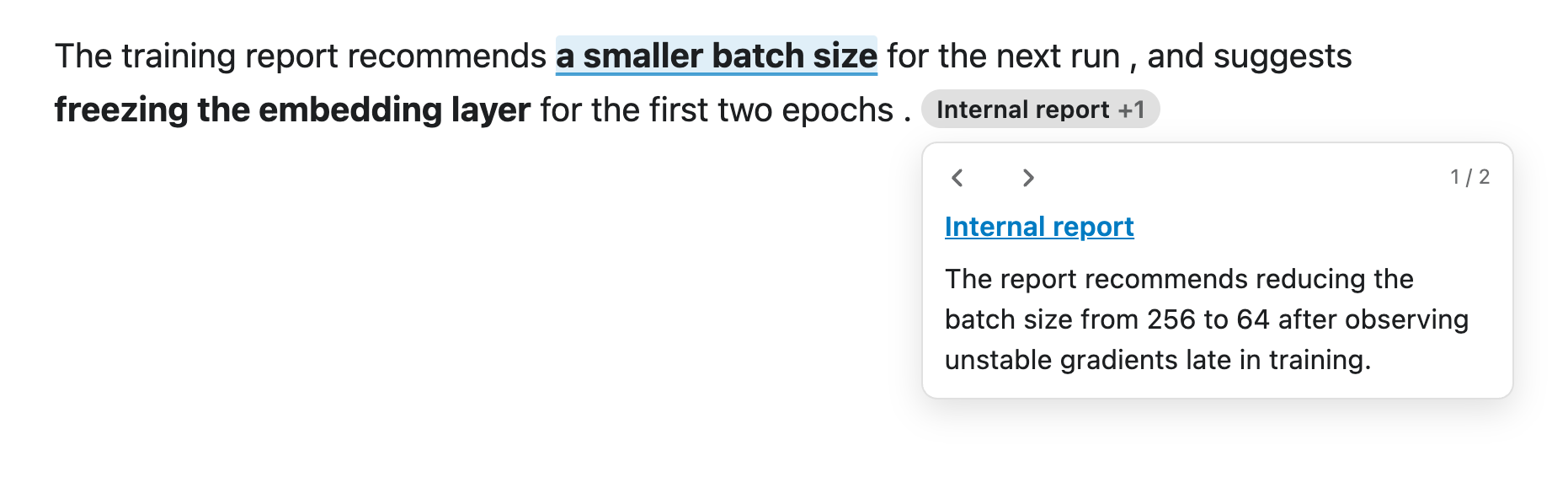
Many LLM providers offer built-in web search and web fetch tools that let your agent search the web, and their APIs return citations when the model uses that content in a reply. shinychat now displays those citations automatically.
For example, here’s how to register Claude’s tools with an ellmer or chatlas client:
library(ellmer)

client <- chat_anthropic()
client$register_tool(claude_tool_web_search())
client$register_tool(claude_tool_web_fetch())
from chatlas import ChatAnthropic, tool_web_fetch, tool_web_search
client = ChatAnthropic(
kwargs={
"default_headers": {
"anthropic-beta": "web-fetch-2025-09-10"
}
}
)
client.register_tool(tool_web_search())
client.register_tool(tool_web_fetch())When this client is used with chat_server(), citations are connected directly to the portions of the assistant’s response that they support.
Custom retrieval applications, like the RAG systems you can build with ragnar or raghilda, can use the same citation UI by prompting the assistant to use a <shiny-aside> tag to attach a source to a claim.
Stream responses and show thinking#
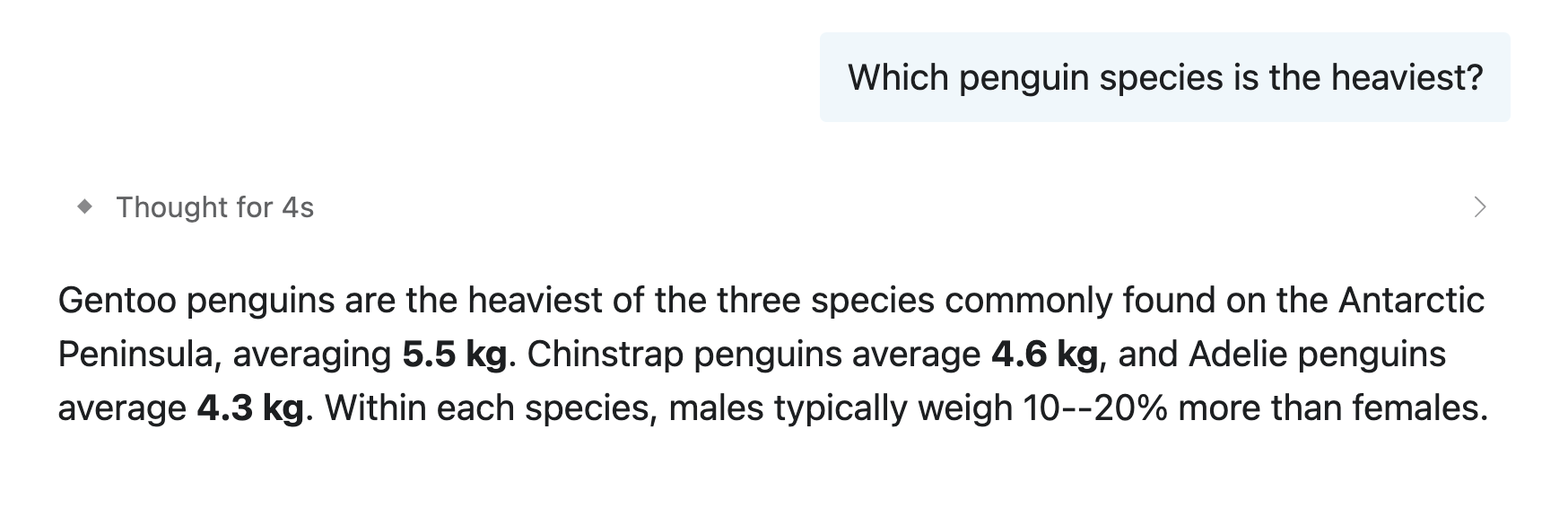
With chat_server() in R or Chat(client=...) in Python, shinychat streams responses and shows supported thinking content in a collapsible panel.
Users can cancel a slow response with the stop button or the Escape key, and the partial response stays in the conversation.

Add files and shortcuts#
Attach files#
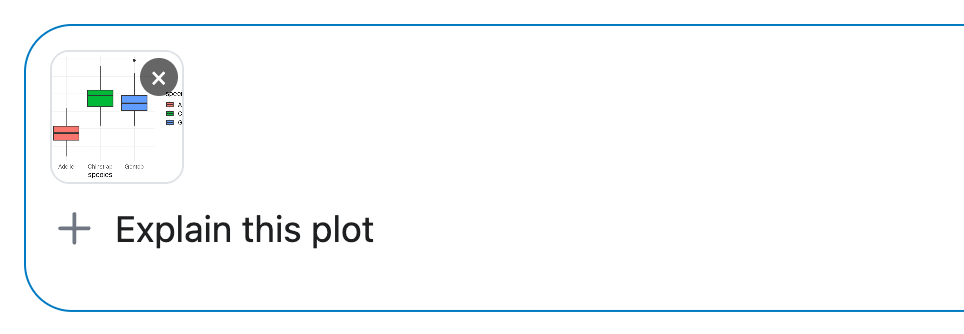
File attachments are now supported in shinychat! Your users can send images, PDFs, and text files through a file picker, drag and drop, or paste, and shinychat sends each file to the model alongside the user’s message. When you use chat_server() in R or Chat(client=...) in Python, your app gets that support for free.
Add slash commands#
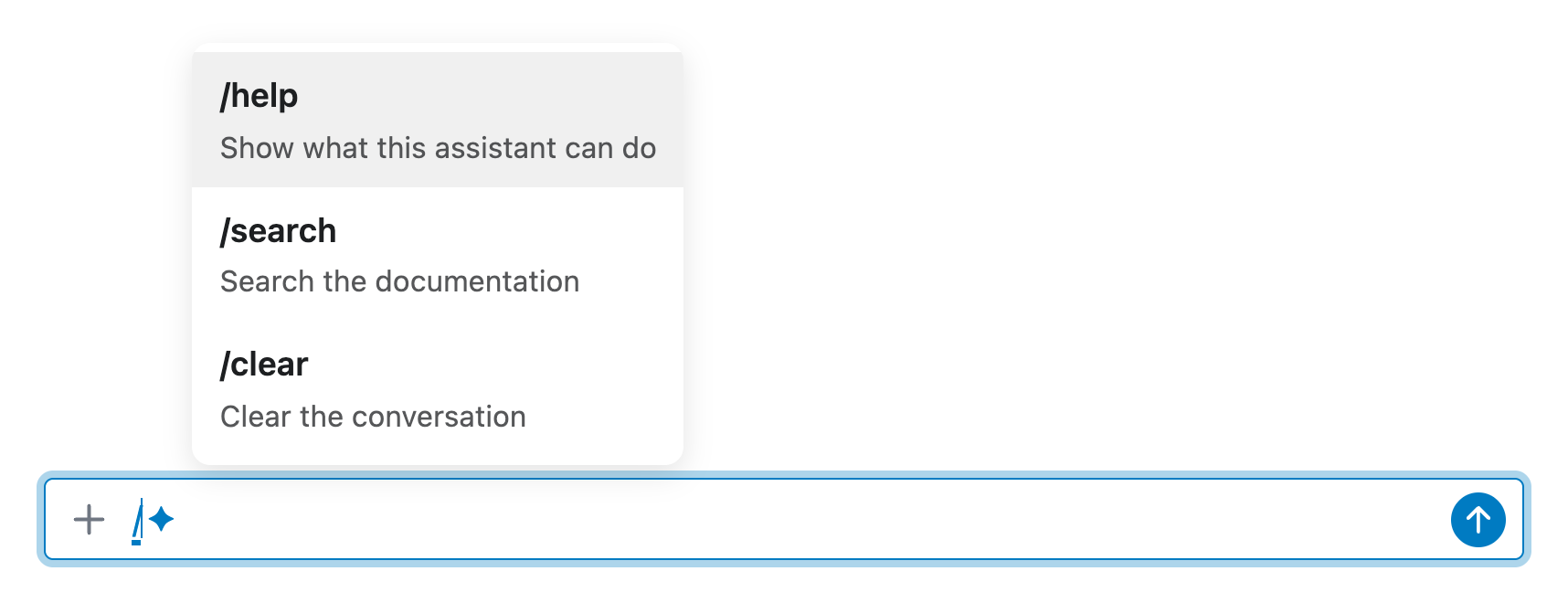
You can now register chat shortcuts, or slash commands, with chat$slash_command() in R or @chat.slash_command() in Python. The command palette appears when users type /, and they serve as a way to trigger server-side code, inject context or additional prompting, or even just take an action in your app, all from the chat input.
Check out the shinychat for R or shinychat for Python documentation for details.
More shinychat-powered apps#
The next release of querychat will bring these chat features to data applications, including conversation history, attachments, tool displays, and citations.
It will introduce a page-first querychat_app() workflow and a new page() API for adding querychat to an existing Shiny page.
btw 1.5.0 already uses shinychat 0.5.0 to give btw_app() a complete coding assistant for your R projects.
It adds conversation history, a page_chat() layout, and slash commands to an assistant that can use your R session, project files, and package documentation.
A few changes for existing apps#
Existing chat_ui() applications remain supported when chat shares a page with other top-level content. When the conversation should fill the application instead, choose page_chat() and use it as the outermost page container; nesting it inside another page layout breaks the full-window layout and history experience.
In R, chat_mod_ui() and chat_mod_server() are soft-deprecated in favor of pairing chat_ui() and chat_server() by ID. In both languages, a startup message no longer seeds a conversation when history is enabled; use a greeting or append messages through the chat object instead.
The release also protects users from unsafe model-authored Markdown, shows an error when a response fails before streaming starts, and preserves tool results, citations, attachments, and other rich content when users return to a conversation.
With page_chat(), chat_server() or Chat(client=...), and the history options, you can now give your users a complete chat application: saved conversations they can return to, messages they can edit into new branches, greetings and suggestions to start from, and responses with visible tool calls, citations, and thinking.
Read the shinychat for R documentation or the shinychat for Python documentation to explore the examples. For the complete list of changes, see the R release notes and the Python changelog.
Acknowledgements#
We thank everyone who contributed to these releases, for opening issues, submitting pull requests, and providing feedback: @bastianolea, @bianchenhao, @christophsax, @cpsievert, @crissthiandi, @elnelson575, @gadenbuie, @Harshit28j, @JamesHWade, @jcheng5, @jlxAtNovozymes, @jnhyeon, @jose-c-milliman, @kaipingyang, @lucasrod16, @markmcd, @nbenn, @parmsam, @schloerke, @shea-parkes, @simonpcouch, @slupczynskim, @thisisnic, @wlandau, and @xx02al.
-
If you’re new to LLM apps with Shiny, Build Your First LLM App with Shiny walks through the process from the beginning in detail. ↩︎