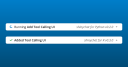





We’re jazzed to announce that shinychat now includes rich UI for tool calls! shinychat makes it easy to build LLM-powered chat interfaces in Shiny apps, and with tool calling UI, your users can see which tools are being executed and their outcomes. This feature is available in shinychat for R (v0.3.0) and shinychat for Python (v0.2.0 or later).
R#
|
|
Python#
|
|
This release brings tool call displays that work with ellmer (R) and chatlas (Python). When the LLM calls a tool, shinychat automatically displays the request and result in a collapsible card interface.
In this post we’ll cover the new Tool calling UI features, how to set them up in your apps, and ways to customize the display. We’ll also highlight some chat bookmarking support and other improvements in shinychat for R v0.3.0 . As always, you can find the full list of changes in the R release notes and Python release notes .
Tool calling UI#
Tool calling lets you extend an LLM’s capabilities by giving it access to functions you define. When you provide a tool to the LLM, you’re telling it “here’s a function you can call if you need it.” The key thing to understand is that the tool runs on your machine (or wherever your Shiny app is running) — the LLM doesn’t directly run the tool itself. Instead, it asks you to run the function and return the result.
Both ellmer and chatlas make it easy to define tools and register them with your chat client1, and they also handle the back-and-forth of tool calls by receiving requests from the LLM, executing the tool, and sending the results back. This means you can focus on what you do best: writing code to solve problems.
Any problem you can solve with a function can become a tool for an LLM! You can give the LLM access to live data, APIs, databases, or any other resources your app can reach.
btw: A complete toolkit for R
If you’re working in R, btw is a complete toolkit to help LLMs work better with R. Whether you’re copy-pasting to ChatGPT, chatting with an AI assistant in your IDE, or building LLM-powered apps with shinychat, btw makes it easy to give LLMs the context they need.
And, most importantly, btw provides a full suite of tools for gathering context from R sessions, including tools to: read help pages and vignettes, describe data frames, search for packages on CRAN, read web pages, and more.
Learn more at posit-dev.github.io/btw !
When the LLM decides to call a tool, shinychat displays the request and result in the chat interface. Users can see which tools are being invoked, what arguments are being passed, and what data is being returned. The tool display is designed to be customizable, so shinychat developers can customize the appearance and display of tool calls to best serve their users.
Basic tool display#
Let’s start by creating a simple weather forecasting tool that fetches a weather data (in the United States) for a given latitude and longitude.
R#
|
|
Python#
|
|
With this tool registered, when you ask a weather-related question, the LLM might decide to call the get_weather_forecast() tool to get the latest weather.
In a chat conversation in your R console with ellmer, this might look like the following.
|
|
Notice that I didn’t provide many context clues, but the model correctly guessed that I’m walking to the MBTA in Boston, MA and picked the latitude and longitude for Boston’s South Station .
In shinychat, when the LLM calls the tool, shinychat automatically displays the tool request in a collapsed card:
Expanding the card shows the arguments passed to the tool. When the tool completes, shinychat replaces the request with a card containing the result:
If the tool throws an error, the error is captured and the error message is shown to the LLM. Typically this happens when the model makes a mistake in calling the tool and often the error message is instructive.
shinychat updates the card to show the error message:
Setting up streaming#
To enable tool UI in your apps, you need to ensure that tool requests and results are streamed to shinychat:
R#
You don’t need to do anything if you’re using chat_app() or the chat module via chat_mod_ui() and chat_mod_server(); tool UI is enabled automatically.
If you’re using chat_ui() with chat_append(), set stream = "content" when calling $stream_async():
|
|
Python#
In Python with Shiny Express, use content="all" when calling stream_async():
app.py
|
|
For Shiny Core mode:
app.py
|
|
Customizing tool title and icon#
You can enhance the visual presentation of tool requests and results by adding custom titles and icons to your tools. This helps users quickly identify which tools are being called.
R#
Use tool_annotations() to add a title and icon:
|
|
Python#
With chatlas, you can customize the tool display in two ways:
-
Use the
._displayattribute to customize the tool display:1 2 3 4 5 6 7 8 9 10import faicons def get_weather_forecast(lat: float, lon: float) -> dict: """Get the weather forecast for a location.""" # ... implementation ... get_weather_forecast._display = { "title": "Weather Forecast", "icon": faicons.icon_svg("cloud-sun") }This approach sets the title and icon for all calls to this tool, so it’s ideal for predefined tools or tools that are bundled in a Python module or package.
-
Set the tool annotations at registration time:
1 2 3 4 5 6 7chat.register_tool( get_weather_forecast, annotations={ "title": "Weather Forecast", "icon": faicons.icon_svg("cloud-sun") } )This approach allows you to customize the display for a specific chat client or application without modifying the tool function itself.
Now the tool card shows your custom title and icon:
Custom display content#
By default, shinychat shows the raw tool result value as a code block. But often you’ll want to present data to users in a more polished format—like a formatted table or a summary.
You can customize the display by returning alternative content:
R#
Return a ContentToolResult with extra$display containing alternative content:
|
|
Python#
Return a ToolResult with display options:
|
|
The display options support three content types (in order of preference):
html: HTML content from packages like{gt},{reactable}, or{htmlwidgets}(R), or Pandas/HTML strings (Python)markdown: Markdown text that’s automatically renderedtext: Plain text without code formatting
Here’s what a formatted table looks like in the tool result:
Additional display options#
You can control how tool results are presented using additional display options:
show_request = FALSE: Hide the tool call details when they’re obvious from the displayopen = TRUE: Expand the result panel by default (useful for rich content like maps or charts)titleandicon: Override the tool’s default title and icon for this specific result
Another helpful feature is to include an _intent argument in your tool definition.
When present in the tool arguments, shinychat shows the _intent value in the tool card header, helping users understand why the LLM is calling the tool.
R#
|
|
Python#
|
|
Notice that the tool function itself doesn’t actually use the _intent argument, but its presence allows shinychat to give the user additional context about the tool call.
Bookmarking support#
When a Shiny app reloads, the app returns to its initial state, unless the URL includes bookmarked state .2 Automatically updating the URL to include a bookmark of the chat state is a great way to help users return to their work if they accidentally refresh the page or unexpectedly lose their connection.
Both shinychat for R and Python provide helper functions that make it easy to restore conversations with bookmarks. This means users can refresh the page or share a URL and pick up right where they left off.
R#
In R, the chat_restore() function restores the message history from the bookmark when the app starts up and ensures that the chat client state is automatically bookmarked on user input and assistant responses.
|
|
enableBookmarking = "url" stores the chat state in encoded data in the query string of the app’s URL.
Because browsers have native limitations on the size of a URL, you should use enableBookmarking = "server" to store state server-side without URL size limitations for chatbots expected to have large conversation histories.
And if you’re using chat_app() for quick prototypes, bookmarking is already enabled automatically.
Python#
In Python, the .enable_bookmarking() method handles the where, when, and how of bookmarking chat state.
Express mode#
|
|
Core mode#
|
|
Configuration options#
The .enable_bookmarking() method handles three aspects of bookmarking:
- Where (
bookmark_store)"url": Store the state in the URL."server": Store the state on the server. Consider this over"url"if you want to support a large amount of state, or have other bookmark state that can’t be serialized to JSON.
- When (
bookmark_on)"response": Triggers a bookmark when an"assistant"response is appended.None: Don’t trigger a bookmark automatically. This assumes you’ll be triggering bookmarks through other means (e.g., a button).
- How is handled automatically by registering the relevant
on_bookmarkandon_restorecallbacks.
When .enable_bookmarking() triggers a bookmark for you, it’ll also update the URL query string to include the bookmark state.
This way, when the user unexpectedly loses connection, they can load the current URL to restore the chat state, or go back to the original URL to start over.
Other improvements in shinychat for R#
Beyond tool calling UI and bookmarking support, shinychat for R v0.3.0 includes several other enhancements.
Better programmatic control#
chat_mod_server() now returns a set of reactive values and functions for controlling the chat interface:
|
|
The returned list includes:
last_inputandlast_turnreactives for monitoring chat stateupdate_user_input()for programmatically setting or submitting user input—great for suggested prompts or guided conversationsappend()for adding messages to the chat UIclear()for resetting the chat, with options to control how the client history is handledclientfor direct access to the ellmer chat client
There’s also a standalone update_chat_user_input() function if you’re using chat_ui() directly, which supports updating the placeholder text and moving focus to the input.
Custom assistant icons#
You can now customize the icon shown next to assistant messages to better match your application’s branding or to distinguish between different assistants:
|
|
This is especially useful when building multi-agent applications where different assistants might have different personalities or roles.
Safer external links#
External links in chat messages now open in a new tab with a confirmation dialog. This prevents users from accidentally navigating away from the chat session and losing their conversation. This is particularly helpful when LLMs include links in their responses, for example when shinychat is used in combination with Retrieval Augmented Generation via ragnar .
Learn more#
The tool calling UI opens up exciting possibilities for building transparent, user-friendly AI applications. Whether you’re fetching data, running calculations, or integrating with external services, users can now see exactly what’s happening.
To dive deeper:
- Read the tool calling UI article for comprehensive examples in R
- Explore tool calling with ellmer (R) or chatlas (Python)
Acknowledgements#
A huge thank you to everyone who contributed to this release with bug reports, feature requests, and code contributions:
@bianchenhao , @cboettig , @chendaniely , @cpsievert , @DavZim , @DeepanshKhurana , @DivadNojnarg , @gadenbuie , @iainwallacebms , @janlimbeck , @jcheng5 , @jimrothstein , @karangattu , @ManuelSpinola , @MohoWu , @nissinbo , @noamanemobidata , @parmsam , @PaulC91 , @rkennedy01 , @schloerke , @selesnow , @simonpcouch , @skaltman , @stefanlinner , @t-kalinowski , @thendrix-trlm , @wch , @wlandau , and @Yousuf28 .
-
See the ellmer tool calling documentation for R and the chatlas tool calling documentation for Python for more details on defining and registering tools. ↩︎
-
This can be especially frustrating behavior since hosted apps, by default, will close an idle session after a certain (configurable ) amount of time. ↩︎